AbaAiCheck
Quick Start BCBAs & Clinicians · Any web-based EHR

Quick Start Guide: AbaAiCheck for BCBAs

Set up your workflow in about 3 minutes and start spending less time reviewing and correcting clinical notes by hand.

Printable guide

Download the Quick Start Guide (PDF)

The same steps with screenshots, ready to print or share with your team. ¿Prefieres español? Descarga la versión en español.

Phase 1⏱ 1 minute

Installation and Setup

The extension is published on the Chrome Web Store, so there are no ZIP files and no developer mode to turn on.

  1. 1.1

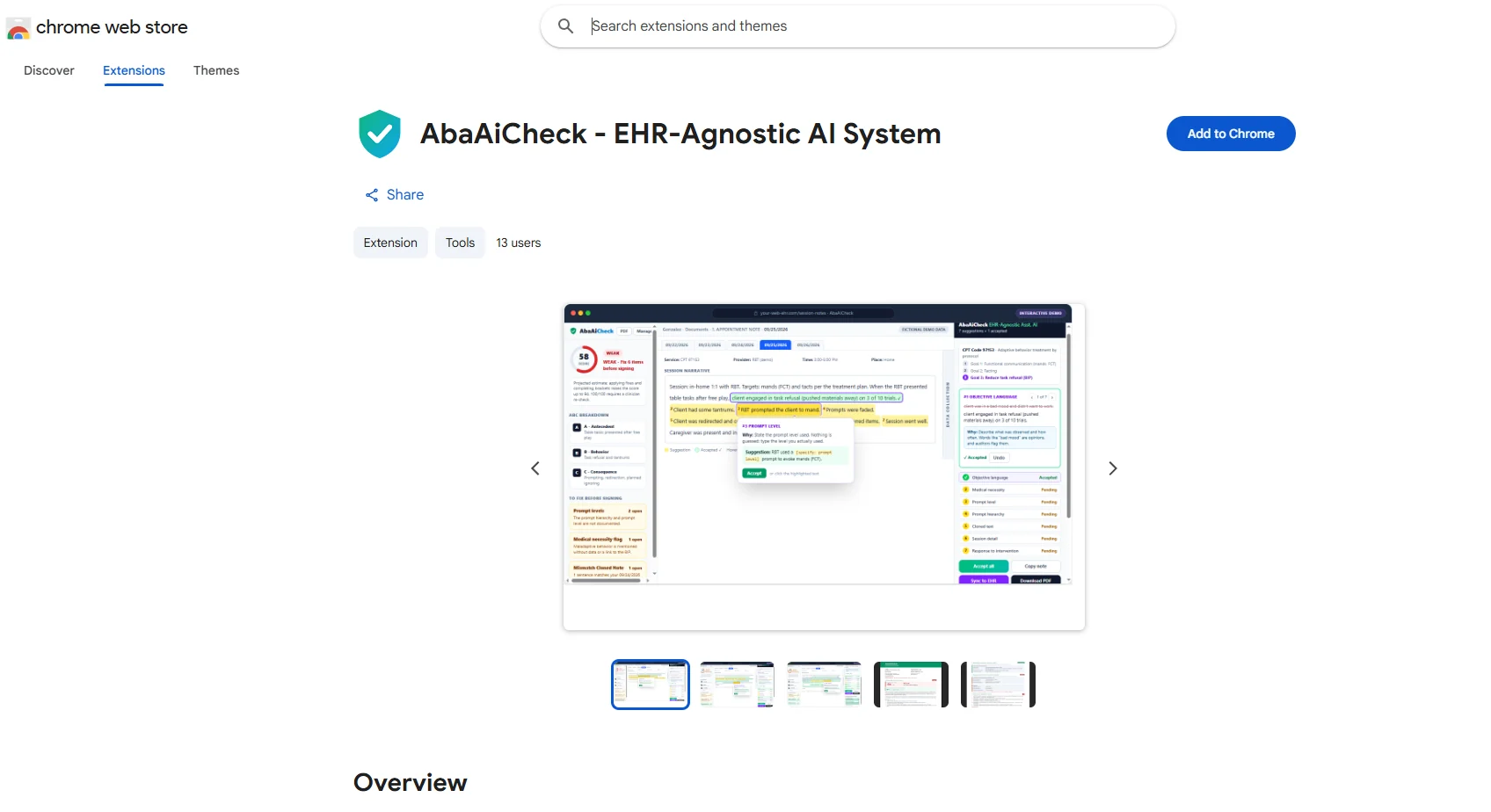
    Install the extension from the Chrome Web Store (1 click)

    AbaAiCheck on the Chrome Web Store
    AbaAiCheck on the Chrome Web Store
  2. 1.2

    Pin the extension and log in

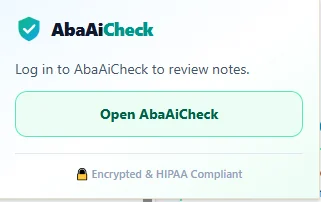
    • Click the puzzle icon (🧩) in the top-right corner of Chrome, find AbaAiCheck and click the pin (📌) so it stays on your toolbar.
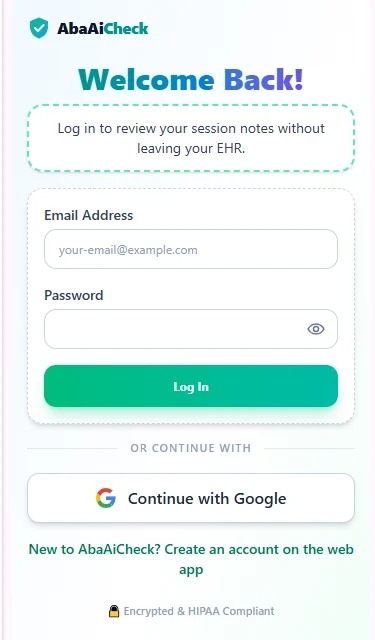
    • Click the green AbaAiCheck icon and sign in with your email and password, or with Continue with Google.

    Tip

    Pinning keeps the icon one click away from any note you open in your EHR.

    Extension pop-up
    Extension pop-up
    Login window
    Login window
Phase 2

Connect with your EHR

AbaAiCheck works on top of web-based EHRs such as CentralReach, Rethink, Office Puzzle and more. Use Google Chrome on your computer (Mac or Windows) with the extension active. The screenshots use Office Puzzle as the example.

  1. 2.1

    Open the session note in your EHR

    • Sign in to your EHR and open the session note you want to review (in Office Puzzle, the Appointment Note).
    • If the panel does not pick up the note automatically, click inside the note field or paste the text into the panel.
  2. 2.2

    Run the clinical assistant

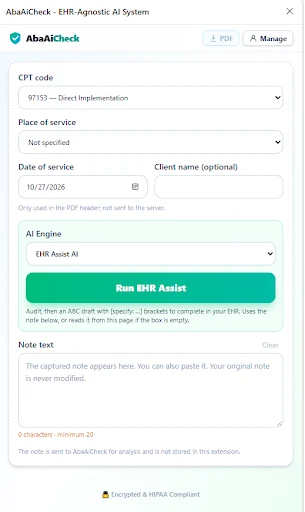
    • Open the AbaAiCheck panel and click Run EHR Assist.
    The Run EHR Assist button in the side panel
    The Run EHR Assist button in the side panel
  3. 2.3

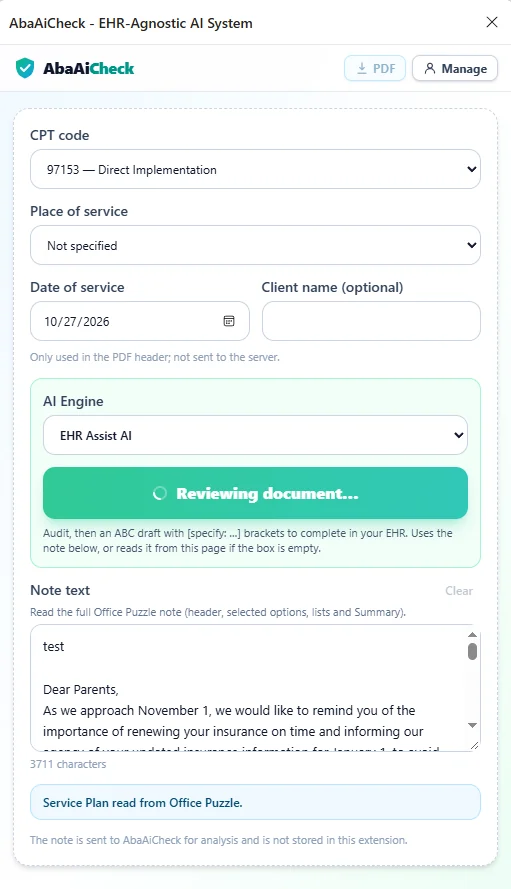
    Wait about 15 seconds

    • A progress bar shows Reviewing document… while the extension reads the note. On Office Puzzle it also reads the client’s Service Plan automatically.

    Keep the note open

    Leave the note open until the review finishes. Timing depends on the length of the note and your connection.

    Reviewing document… progress
    Reviewing document… progress
Phase 3

Interactive Editing and Sync

Fix the note from the AbaAiCheck panel and send the final text straight back to your EHR.

  1. 3.1

    Review the detailed report

    • Click Show full details to open the complete analysis in the interactive review window.
  2. 3.2

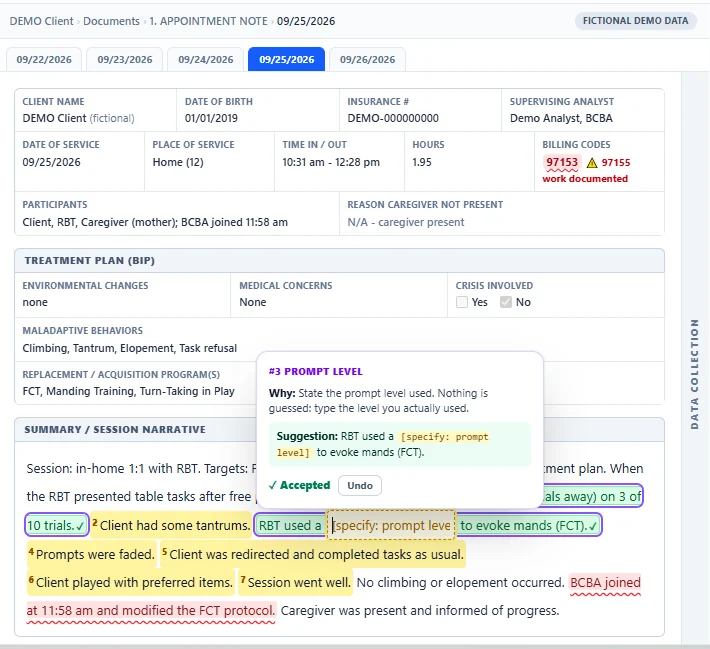
    Accept suggestions and fill in clinical data

    • Click Accept to replace subjective language with objective, measurable wording.
    • Complete the yellow guided fields, for example [specify: prompt level], with the real data from the session.

    Nothing is guessed

    The AI never fills in session facts for you, and you cannot sync while any [specify: …] field is still empty.

    Interactive editor correcting a note (fictional demo data)
    Interactive editor correcting a note (fictional demo data)
  3. 3.3

    Sync back to your EHR

    • Press Sync to EHR to write the corrected text into the note field of your EHR, with no copy and paste.
  4. 3.4

    Save the changes

    • Click Save in your EHR. The note is not updated in the client’s record until you do.
Real people, not a ticket queue

Need assistance or have questions?

If you get stuck on any step, don’t lose time on your own. We can get you set up right away:

📞 Phone or screen share

We can walk you through setup on a short call of about 3 minutes.

⭐ VIP support

Remote help over a screen-sharing video call, or in person if you are in our area (subject to availability), so everything is configured for you.

AbaAiCheck supports clinical documentation review. It does not replace clinical judgment, payer-specific guidance or legal advice and does not guarantee payer approval; the clinician reviews every suggestion and remains responsible for each note they sign. CentralReach, Rethink and Office Puzzle are trademarks of their respective owners; AbaAiCheck is not affiliated with or endorsed by them.